Pipeline statuses (the columns on your Kanban board) define the stages a contact moves through. When your process evolves, you can add a new status at any time without losing your existing contacts or data.
How to add a new status:
- Open the pipeline you want to edit (e.g. Pipeline – Sales).
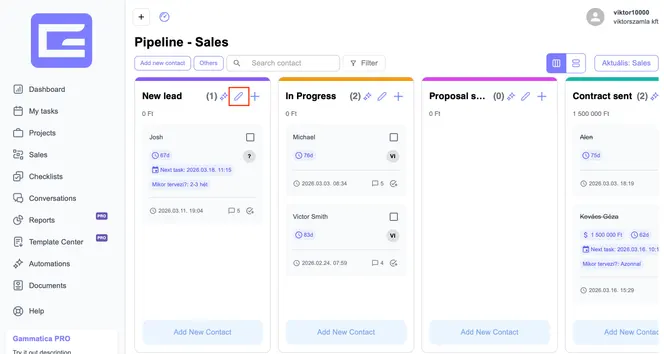
- On the Kanban board, find the status column you want to work from and click the pencil icon in its header. This opens the Edit window for managing statuses.
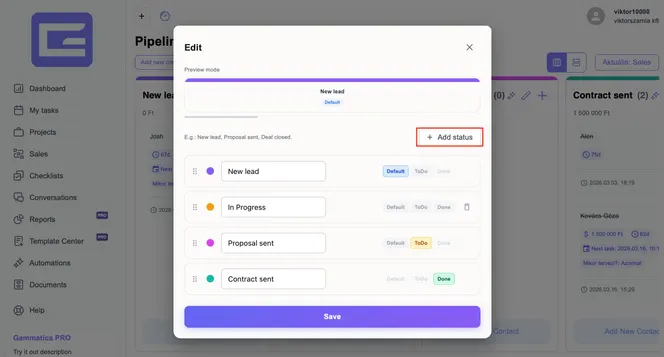
- In the Edit window, click the + Add status button in the top-right corner.
- A new status row appears. Enter a name for the status (e.g. New lead, Proposal sent, Deal closed).
- Choose the status type using the toggle on the right:
- Default – the starting stage for new contacts
- ToDo – an in-progress, active stage
- Done – a completed/closed stage
- Set the status color using the colored dot, and use the drag handle on the left to position it in the correct order within your pipeline.
- Click Save to apply your changes.
The new status becomes available immediately as a column on your Kanban board, and any contact can be moved into it. Existing contacts stay in their current status until you move them manually.
Tip: Use the Preview mode panel at the top of the Edit window to see how the status will look before saving. To remove a status, click the trash icon next to it.