Importing contacts
1. Open the Sales menu Once you're logged in to Gammatica, find the Sales menu in the left sidebar.
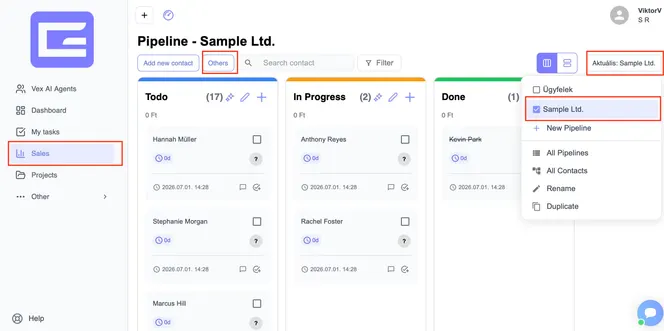
2. Select your pipeline In the top right, choose the pipeline you want to import into. If you're already in the right pipeline, just click the Others button — you'll find the Import / Export options there.
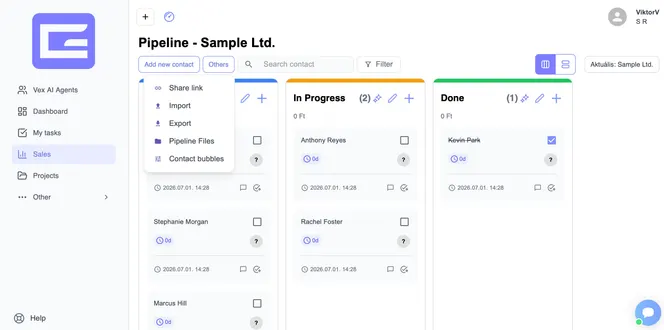
3. Prepare and upload your CSV file Choose Import and upload a CSV file containing your contacts.
Important: The first row of your CSV must contain the field (column) names. For example: first column Name, second column Phone number, and so on.
How to create a CSV file:
- In Google Drive, create a new Google Sheet.
- Enter your field names in the first row, then add your contact data below.
- Go to File → Download → Comma Separated Values (.csv).
4. Map your columns After the file is uploaded, match each CSV column to the corresponding Gammatica field.
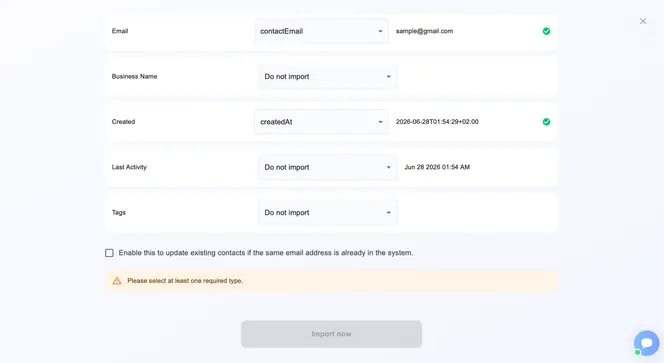
5. Start the import Run the import. This can take 5–10 minutes. If you're importing a large list (several thousand rows) or the process runs into an error, please email us at [email protected].
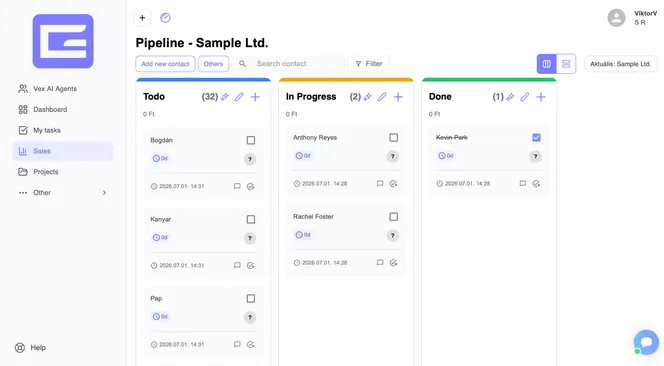
6. Done Once the import finishes, your contacts will appear in the Kanban / list view.
Exporting contacts
Exporting is quick and simple:
- Open the Sales menu.
- Select your pipeline in the top right.
- Click the Others button.
- Click Export — your data downloads instantly as a CSV. You can re-upload it to Google Drive anytime to convert it into another format.
Still have questions? Write to us at [email protected].