Too often, teams at mid-sized tech companies in Hungary feel buried under manual updates and scattered communication. For project managers, balancing schedules, status tracking, and team alignment can turn into a daily struggle without the right tools. Choosing and configuring project management workflow automation brings order to the chaos, helping your team focus on real collaboration instead of repetitive admin work.
Table of Contents
- Step 1: Set Up Project Management Workflow Tools
- Step 2: Build Automated Task And Team Processes
- Step 3: Integrate Collaboration And Calendar Features
- Step 4: Verify Workflow Efficiency And Results
Step 1: Set up project management workflow tools
You’re ready to build a foundation that actually works for your team. Setting up project management workflow tools requires thoughtful configuration, not just installation. The goal is creating a system your team will actually use rather than abandon after two weeks.
Start by identifying your core workflow needs. What does a typical project look like for your team? Are you managing software sprints, client deliverables, or hybrid projects? Understanding essential project management frameworks helps you select and configure the right tool architecture for your specific context.
Next, map out these key elements:
- Team roles and permission levels (who needs access to what)
- Project phases from initiation to completion
- Communication touchpoints where decisions happen
- Reporting requirements your leadership actually reads
- Integration points with tools you already use daily
Once you’ve identified these pieces, configure your tool step by step. Don’t try to build the perfect system on day one. Instead, start with essential features and expand from there.
Set up your workspace structure first. Create projects that mirror how your team actually organizes work. Then build task hierarchies, assign owners, and establish clear status definitions.
Configure automation next. This is where you save hours weekly. Set up automatic task transitions, notification rules, and template workflows so repetitive setup disappears.
Test with a single project. Run one complete project cycle through your new workflow before scaling to all team members. This reveals configuration gaps before they frustrate everyone.
Your team will resist change initially. That’s normal. The smoother your tool setup, the faster adoption happens.
A well-configured workflow tool saves your team 16 hours weekly by eliminating manual status updates and administrative overhead.
Pro tip: Start by automating your most repetitive task type first. When team members see three hours disappear from their weekly status update routine, they’ll become your tool’s best advocates.
Step 2: Build automated task and team processes
Automation is where your team stops wasting time on repetitive work. Building automated task and team processes transforms your workflow from manual checklists into intelligent systems that handle routine decisions and updates automatically.

Start by identifying which tasks drain the most time from your team’s week. Are people spending hours on status updates, manually moving tasks between phases, or sending repetitive notifications? These are your automation targets.
Begin with these high-impact automation opportunities:
- Auto-assign tasks based on team member workload or expertise
- Automatically transition tasks when dependencies are completed
- Send notifications only when something requires actual human attention
- Generate status reports from task data without manual compilation
- Trigger follow-up tasks automatically when parent tasks finish
When you configure each automation rule, think about your team’s actual workflow. Understanding workflow process optimization techniques helps you design rules that match how your team actually works rather than forcing them into rigid processes.
Start with one automation rule. Don’t overwhelm yourself building ten rules at once. Pick your biggest pain point and automate it completely. Test it for one full project cycle.
Monitor what happens. Watch whether the automation actually saves time or creates confusion. Your team’s feedback here is invaluable for refining the rule.
Then build the next automation. Once your team trusts the first automation, they’ll embrace the next one faster.
Here is a summary of key workflow automation impacts:
| Automation Feature | Primary Benefit | Example Impact |
|---|---|---|
| Automatic Task Assignment | Balanced team workloads | Complex tasks matched to skills |
| Automated Status Transitions | Faster project updates | Less manual tracking required |
| Conditional Notifications | Reduced distractions | Fewer unnecessary alerts |
| Auto-Generated Reports | Informed decision-making | Leadership gets instant insights |
| Follow-Up Task Creation | Improved accountability | No steps missed post-completion |
Automation rules that match your team’s existing habits get adopted quickly. Rules that force behavior changes face resistance.
The table below compares traditional vs. automated workflows:
| Aspect | Traditional Workflow | Automated Workflow |
|---|---|---|
| Task Updates | Manual, time-consuming | Instant status changes |
| Error Frequency | Prone to human error | Highly consistent outcomes |
| Team Engagement | Can lead to resistance | Increases with visible savings |
| Reporting | Compiled by hand | Generated automatically |
| Adaptability | Slow to adjust | Rapid rule tweaks possible |
Smart automation removes administrative overhead so your team focuses on work that actually requires thinking.
Pro tip: Create a template workflow for your most common project type, then use automation to populate and move tasks through it automatically, saving setup time on every new project.
Step 3: Integrate collaboration and calendar features
Your team communicates scattered across emails, messages, and meetings. Integrating collaboration and calendar features pulls these conversations into one space where decisions happen alongside tasks. This eliminates the constant context switching that kills productivity.
Start by connecting your calendar system to your project management workflow. When team members see task deadlines aligned with their actual calendar availability, they make better commitments. They also spot scheduling conflicts before they become missed deadlines.
Integrate these collaboration elements into your workflow:
- Sync calendar availability so task assignments account for real workload
- Embed video conferencing links directly into tasks or project pages
- Create shared checklists where multiple people contribute simultaneously
- Link discussion threads to specific tasks so context stays connected
- Set up automated meeting invitations when tasks reach critical phases
When you connect team communication and task management integration, you reduce the friction that slows down decision-making and project momentum.
Enable online meeting features within tasks. Rather than scheduling a separate meeting and losing task context, hold the conversation where the work lives. This keeps decisions connected to the decisions they affect.
Set permissions so collaboration is open but controlled. Your team needs permission to view and comment on relevant work without accidentally accessing confidential client information.
Use collaboration features for real-time updates. Instead of waiting for status meetings, team members see task progress instantly and comment when blockers appear.
Collaboration tools work best when your team actually uses them. Adoption happens fastest when these features feel natural rather than forced.
Bringing communication into your workflow eliminates the time wasted explaining context across multiple platforms.
Pro tip: Set up automatic meeting reminders with task links so team members join calls already aware of what’s being discussed and can see project details without hunting through emails.
Step 4: Verify workflow efficiency and results
You’ve built your system. Now you need to know whether it’s actually working. Verifying workflow efficiency and results means measuring what matters, spotting bottlenecks, and making adjustments based on real data rather than assumptions.
Start by identifying your key performance indicators. These are the metrics that tell you whether your workflow is succeeding. Common indicators include task completion rates, cycle time from start to finish, and how often deadlines slip.
Track these essential metrics:
- Average time from task creation to completion
- Percentage of tasks finished on schedule
- Bottlenecks where work consistently gets stuck
- Resource utilization across team members
- Communication frequency and response times
When you measure workflow efficiency through systematic tracking, you identify which automation rules actually help and which ones create friction.
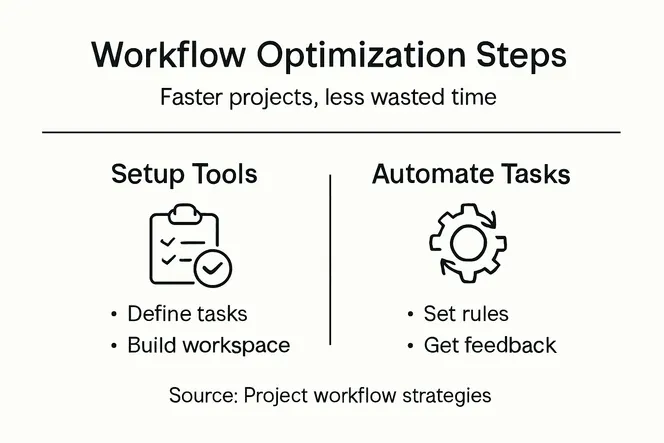
Pull reports weekly at first. Most project management tools generate these automatically. Look for patterns. If tasks consistently slow down at one phase, that’s your next optimization target.
Gather feedback from your team. Ask what slows them down. Sometimes the data shows one problem, but team members experience a different frustration. Both perspectives matter.
Adjust and test again. Based on what you learn, tweak your automation rules, update your workflow phases, or reconfigure permissions. Then measure again to see if the change helped.
Your workflow should feel smoother over time. If it doesn’t, something in your configuration isn’t matching your team’s reality.
Regular measurement and iterative improvements transform workflows from theoretical systems into practical tools your team actually trusts.
Pro tip: Compare your metrics month over month, not project to project, since project complexity varies significantly and can mask real efficiency gains.
Unlock Your Team’s Full Potential with Smarter Workflow Management
Struggling to implement project management tools that your team actually adopts? The article highlights common challenges like manual status updates, fragmented communication, and repetitive tasks that waste valuable time. With goals focused on automation, seamless collaboration, and continuous workflow optimization, it is clear that teams need a platform that adapts to their real-world processes while providing intuitive automation and integrated communication features.
Gammatica.com delivers exactly that by combining AI-driven automation, customizable task management, and calendar synchronization, all designed to eliminate administrative overhead. Imagine reclaiming up to 16 hours weekly from redundant updates and inefficient team coordination, just like the article suggests. Whether you want to automate task assignments, synchronize meetings with your calendar, or generate instant reports for leadership, Gammatica offers a powerful yet simple solution tailored to your team’s unique workflow.
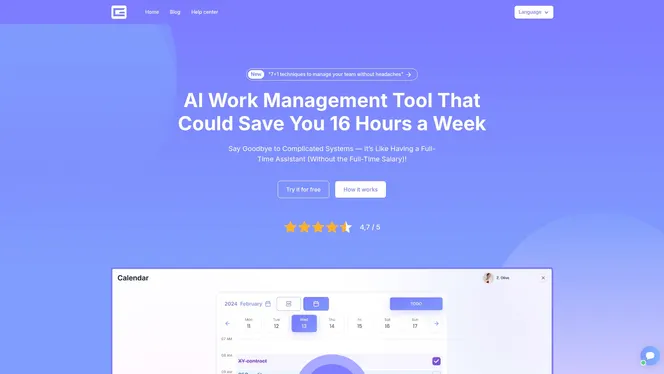
Discover how to transform your traditional project management challenges into streamlined success stories with Gammatica.com. Take the next step by exploring intuitive features like CRM integration and interactive checklists that empower your team to focus on what really matters. Start optimizing your workflow now to boost productivity and team engagement today.
Frequently Asked Questions
How can I set up a project management workflow that my team will use?
To set up a project management workflow that your team will actually engage with, start by identifying your core workflow needs. Map out team roles, project phases, and communication touchpoints, and then configure your tool step by step, beginning with essential features.
What are the best automation opportunities to streamline my team’s workflow?
Identify tasks that take up the most time, such as status updates and task transitions. Begin automating high-impact tasks, like auto-assigning work based on member expertise, to free up precious time and enhance efficiency by up to 20%.
How do I integrate collaboration features into my project management system?
To integrate collaboration features, connect your calendar system and embed communication tools directly into your project management application. This allows your team to see deadlines alongside their availability, ultimately improving commitment and reducing missed deadlines.
What key performance indicators should I track to measure workflow efficiency?
Track critical metrics like average task completion time, the percentage of tasks finished on schedule, and resource utilization across team members. Pull reports weekly to identify patterns and evaluate workflow success over time.
How can I ensure my team adapts to these new workflows smoothly?
Expect some initial resistance from your team, but ensure a smooth transition by configuring the tool to align with their existing habits. Start with a single project cycle, gather feedback, and adjust based on their experiences to improve overall adoption.