In Gammatica, all important data — such as phone number, email, location, deal value, deadline, or priority — is stored in custom fields (also called variables).
These variables can be created in two places:
- Sales Pipelines → variables are attached to Contacts
- Project Pipelines → variables are attached to Tasks
This allows Gammatica to work both as a CRM and as a project management system using the exact same flexible data engine.
Variables in Sales (CRM Pipelines)
In Sales Pipelines, variables store information about people and companies.
- Examples:
- Phone number
- Company name
- Deal value
- Location
- Lead source
These variables belong to a specific Sales Pipeline and appear on every Contact inside that pipeline.
How to create variables in a Sales Pipeline (Contacts)
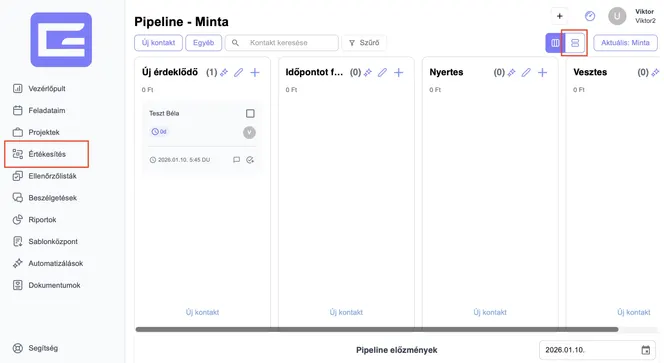
1. Click Sales in the main menu
2. Select the Pipeline where you want the variables
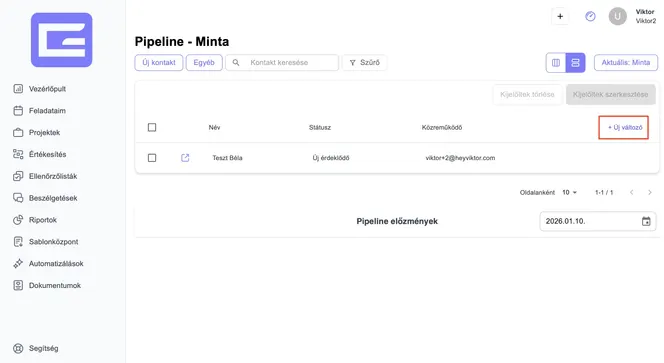
3. Switch to List view
(If you see columns, you are in Kanban — switch to List)
4. In the List table, go to the last column
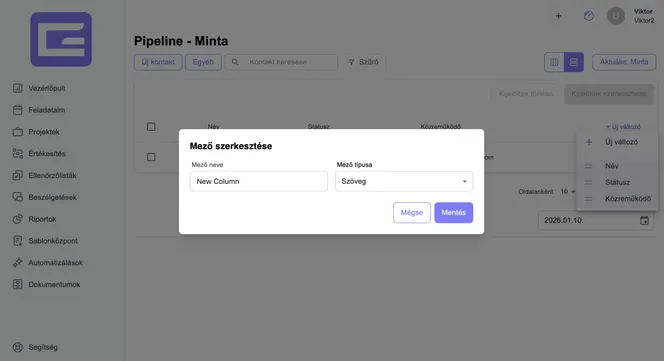
5. Click Add variables
6. Create the variables you need (for example: Phone number, Email, Location)
After saving, these variables automatically become available for all contacts in that pipeline.
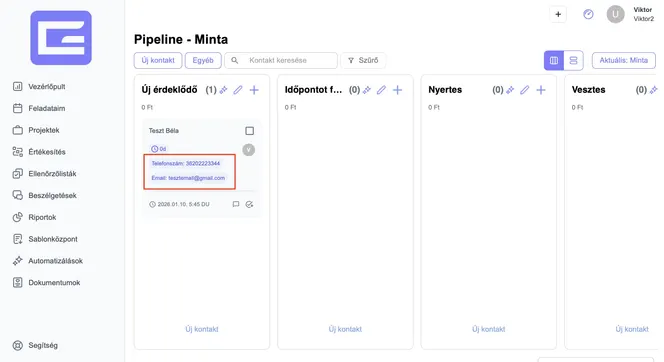
Show variables on Kanban cards (Contact Bubbles)
You can also display variables directly on Kanban cards for quick preview.
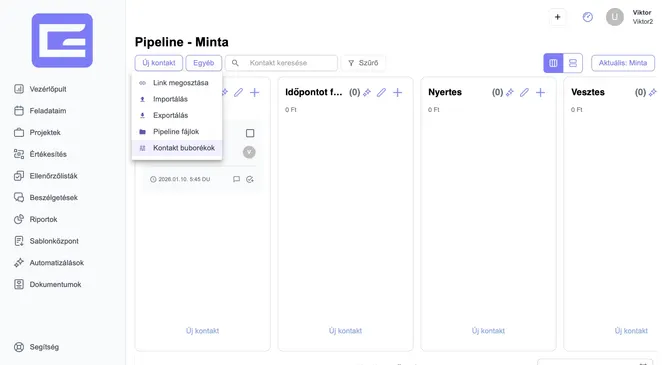
1. Open the Other menu
2. Click Contact Bubbles
3. Select which variables should appear on the Kanban cards
(for example: Phone number and Email)
Now every contact card in Kanban view will show those selected fields.
Variables in Projects (Task Pipelines)
Project Pipelines work exactly the same way — but instead of Contacts, the variables are attached to Tasks.
Examples:
- Deadline
- Priority
- Assigned person
- Estimated hours
- Budget
- Status note
This lets you structure project data just as flexibly as CRM data.
How to create variables in a Project Pipeline (Tasks)
1. Click Projects in the main menu
2. Select the Project Pipeline
3. Switch to List view
4. Go to the last column
5. Click Add variables
6. Create the task-related variables you need
Once saved, every task in that project pipeline will automatically have these fields.
Show variables on Kanban task cards
Just like in Sales, you can preview variables on Kanban cards for tasks.
1. Open the Other menu
2. Click Contact Bubbles (used for both contacts and tasks)
3. Select which task variables should appear on the cards
Now your Kanban task cards will display key data at a glance.
Why this system is powerful
Because both Sales and Projects use the same variable system, you get:
- a flexible CRM
- a flexible project manager
- structured data for reporting, automation, and AI
- and a system that adapts to how your business actually works